
Why does a smartwatch with Bluetooth call support show as connected but still fail when a call comes in? This is one of the most common setup problems for U.S. users. The watch may sync steps, show notifications, and stay paired in the app, but calls may not ring on the wrist, audio may stay on the phone, or the answer button may not appear. In most cases, the issue is not general Bluetooth connection. It is call-audio pairing, phone permissions, notification access, or audio routing.
This article solves one problem: your smartwatch appears connected, but Bluetooth calls are not working correctly. The fix usually starts with call-audio pairing, phone permissions, notification access, contact access, and audio routing.
Why Your Smartwatch Looks Connected but Calls Still Fail
A smartwatch can connect to a phone in more than one way. One connection may handle app syncing, step data, weather, and notifications. Another part of the connection may handle call audio through the watch speaker and microphone.
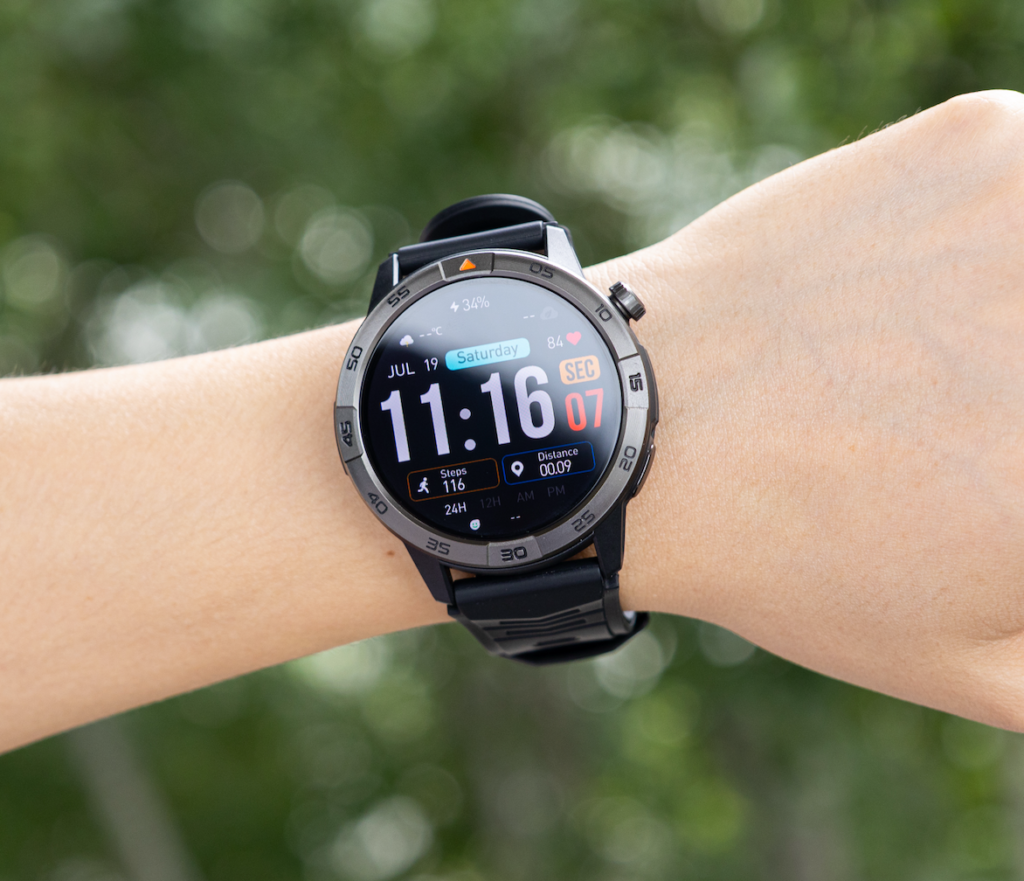
That is why a watch can look connected but still fail during calls.
For example, an American user may see text alerts on the watch during the workday, but incoming calls still ring only on the phone. That does not always mean the watch is broken. It may mean call audio was not enabled, phone permissions were blocked, or another Bluetooth device is taking over the call.
The key is to stop asking only, “Is my smartwatch connected?” and start asking, “Is my smartwatch connected for calls?”
Step 1: Check Whether It Is Paired for Calls, Not Just Alerts
The first thing to check is whether the smartwatch is paired for call audio. Notification pairing and call pairing are not always the same.
Notification pairing lets the watch show alerts from your phone. Call pairing lets the watch act as a wrist-based speaker and microphone for phone calls.
You may have notification-only pairing if:
- Text messages appear, but calls do not ring on the watch
- Missed call alerts appear only after the call ends
- The watch vibrates but does not show an answer button
- Calls answer on the phone instead of the watch
- The caller cannot hear you through the watch
- Bluetooth settings do not show call audio or phone audio
Some smartwatches appear as one Bluetooth device. Others may show two Bluetooth entries, one for app syncing and one for call audio. If your watch has a separate call-audio connection, both may need to be active.
For a broader explanation of call-capable models, you can read this guide on a smartwatch that can answer phone calls.
Step 2: Confirm the Basic Bluetooth Calling Requirements
Before changing advanced settings, confirm the basics. A smartwatch with Bluetooth call support usually needs:
- Bluetooth turned on
- The watch paired through the correct companion app
- The phone close enough to maintain connection
- Call audio enabled in Bluetooth settings
- Phone permission allowed
- Contacts permission allowed if caller names are needed
- Notification permission allowed
- The watch speaker and microphone available for calls
- No other Bluetooth device taking over the call
This matters because Bluetooth calling depends on the nearby paired phone. It is not the same as LTE or cellular calling. If the phone is too far away, in another room, left in the car, or connected to another audio device, the watch may not handle the call properly.
For U.S. consumers buying a smartwatch mainly for calls, this is one of the most important expectations to understand before judging performance.
Step 3: Check Android Settings That May Block Calls
On Android phones, Bluetooth calling can fail when the smartwatch app does not have the right permissions. The exact wording may vary depending on the phone brand and Android version, but the most common areas to check are similar.
Look for settings related to:
- Bluetooth or Nearby devices
- Phone permission
- Contacts permission
- Notifications
- Call logs, if requested
- Background activity
- Battery restrictions
- Do Not Disturb
A U.S. office worker may pair the watch during lunch, skip permission prompts quickly, and later wonder why calls do not appear during the afternoon. In many cases, the watch app was allowed to sync basic data but was not allowed to manage phone calls or notifications.
Android Fix
Use this order:
- Open phone settings.
- Find the smartwatch companion app.
- Open app permissions.
- Allow Bluetooth or Nearby devices if shown.
- Allow Phone permission if available.
- Allow Contacts if caller names are missing.
- Allow Notifications.
- Check whether the app is restricted by battery settings.
- Restart the phone and smartwatch.
- Open the companion app again before testing a call.
If your Android phone recently updated, review these permissions again. Phone updates can sometimes change app behavior, background access, or notification settings.
Step 4: Check iPhone Settings That May Block Calls
On iPhone, Bluetooth calling can fail because of Bluetooth access, notification settings, contact access, Focus mode, or incomplete pairing.
Check these areas:
- Bluetooth connection
- Companion app permissions
- Contacts access
- Notifications
- Focus mode
- Do Not Disturb
- Bluetooth device list
For example, a California commuter may think the watch stopped working because calls no longer appear on the wrist. The real issue may be a Focus mode blocking call alerts during certain hours. Another user may receive calls but see only phone numbers because contact access was not allowed.
iPhone Fix
Try this sequence:
- Open iPhone Settings.
- Go to Bluetooth and confirm the watch is connected.
- Open the smartwatch companion app settings.
- Allow Bluetooth access if requested.
- Allow Contacts if caller names are missing.
- Check Notifications for the app.
- Review Focus and Do Not Disturb settings.
- Restart the iPhone and smartwatch.
- Open the companion app before testing another call.
If the watch worked before but stopped after an update, remove the old Bluetooth connection and pair the watch again through the companion app.

Step 5: Fix Calls That Show on the Watch but Have No Sound
If calls appear on the smartwatch but there is no sound, the problem is usually not notification access. The watch is receiving the call alert. The issue is likely call audio.
This can happen when the phone sends sound to:
- The phone speaker
- Wireless earbuds
- Car audio
- A laptop or other Bluetooth device
- A different saved audio device
This is common for American users who move between multiple devices in one day. Someone may use earbuds at the gym, car audio while commuting, and a smartwatch at work. The phone may route the call to the last active audio device instead of the watch.
Audio Routing Fix
During a test call:
- Open the audio output menu on the phone.
- Look for the smartwatch as an audio option.
- Select the smartwatch if available.
- Turn up the call volume on the phone.
- Turn up the watch volume.
- Disconnect earbuds or car audio temporarily.
- Test one call with only the watch connected.
If the smartwatch does not appear as an audio option, return to Bluetooth settings and check whether call audio is enabled.
For hardware basics, see this guide on a smartwatch with speaker and microphone for calls.
Step 6: Fix Calls That Ring on the Phone but Not the Watch
If calls ring on the phone but never appear on the smartwatch, focus on notification access and call alert settings.
Check these points:
- Is the watch connected in the companion app?
- Are call alerts enabled inside the smartwatch app?
- Are phone notifications allowed?
- Is Do Not Disturb turned on?
- Is a Focus mode blocking call alerts?
- Is the phone close enough?
- Was the watch paired through the correct app?
- Did another Bluetooth device take over?
A New York office worker may keep the phone on silent during meetings and expect the watch to show every call. But if notification access or Focus settings block the alert, the smartwatch may never receive it.
Call Alert Fix
Use this order:
- Open the smartwatch app.
- Find call alert or notification settings.
- Make sure incoming call alerts are enabled.
- Check phone notification permissions.
- Turn off Focus or Do Not Disturb temporarily for testing.
- Keep the phone and watch close together.
- Ask someone to place a test call.
If the test call appears, the issue was likely notification access or a phone mode blocking alerts.
Step 7: Fix Caller Names Not Showing on the Watch
If calls work but names do not appear, the problem is usually contact access or contact synchronization.
This is still part of the same Bluetooth calling problem because caller ID affects whether wrist calling is actually useful. A watch that only shows unknown numbers is less helpful when you are trying to decide whether to answer quickly.
Caller ID may fail if:
- Contacts permission is blocked
- Contact sync is turned off
- The app has not completed syncing
- Contacts are stored across multiple accounts
- The phone recently updated
- The watch needs to reconnect through the app
Caller ID Fix
Try this:
- Allow Contacts permission for the smartwatch app.
- Open the companion app.
- Look for contact sync or favorite contact settings.
- Re-sync contacts.
- Restart the watch.
- Test with a saved contact.
If caller names still do not appear, remove the pairing and reconnect the watch after confirming contact permission.
Step 8: Stop Earbuds or Car Audio From Taking Over Calls
Bluetooth calling can fail when the phone prefers another audio device. This does not mean the smartwatch cannot support calls. It means the phone is routing the call somewhere else.
This is especially common in the United States because many people use multiple Bluetooth devices during a normal day. A commuter may connect to car audio in the morning, earbuds at lunch, and a smartwatch at work. The phone may not always choose the device you expect.
Device Conflict Fix
Before testing smartwatch calls:
- Disconnect wireless earbuds.
- Disconnect car audio.
- Keep only the smartwatch connected.
- Place a test call.
- Confirm whether audio works through the watch.
- Reconnect other devices one at a time.
If calls work when other devices are disconnected, the problem is not the watch setup alone. It is Bluetooth audio priority.
Step 9: Reconnect Without Doing a Full Reset First
A factory reset should not be the first solution. It can remove settings and synced preferences. Start with a lighter reconnection process.
Soft Reconnect
Try this first:
- Keep the phone and watch close together.
- Turn Bluetooth off and back on.
- Restart the smartwatch.
- Restart the phone.
- Open the companion app.
- Test one incoming call.
Remove and Re-Pair
If that does not work:
- Remove the watch from the phone’s Bluetooth saved devices.
- Remove or disconnect the watch inside the companion app.
- Restart both devices.
- Open the companion app.
- Pair the watch again.
- Accept the permission prompts.
- Confirm call-audio pairing.
- Test an incoming and outgoing call.
Only use a full factory reset if the watch still fails after these steps.
Step 10: Use This Final Troubleshooting Order
If your smartwatch is connected but Bluetooth calls are not working, follow this order from top to bottom:
- Confirm the phone is nearby.
- Confirm Bluetooth is connected.
- Open the companion app.
- Check whether call-audio pairing is active.
- Check Android or iPhone permissions.
- Allow notifications.
- Allow contacts if caller ID is missing.
- Disconnect earbuds and car audio temporarily.
- Test call audio through the watch.
- Restart both devices.
- Remove and re-pair if needed.
- Factory reset only as a final step.
This order keeps the troubleshooting focused. It starts with the most common reasons Bluetooth calling fails before moving to bigger fixes.
Where This Smartwatch Fits for Bluetooth Call Support
For users who want wrist-based calling, the most important question is not only whether the watch has Bluetooth. The better question is whether the watch supports the call behavior you actually need.
This smartwatch is most relevant for users who want to answer, reject, and manage short calls from the wrist while the paired phone stays nearby. It makes sense for quick call control during desk work, home tasks, errands, or other daily moments when pulling out the phone is inconvenient.
It should not be treated as a separate cellular phone. For independent calling away from the phone, an LTE smartwatch is the better category. For long private conversations, wireless earbuds may still be the better tool.
Final Advice
Do not judge a smartwatch with Bluetooth call support only by whether it connects in the app. A watch can sync data and still fail calls if call audio, permissions, contacts, or audio routing are not set correctly.
If your main issue is Bluetooth calling reliability, start with compatibility, permissions, and call-audio pairing first. Then you can review the smartwatch call-support details to decide whether it fits your phone setup and the way you want to answer calls from your wrist.
Frequently Asked Questions
Why is my smartwatch connected but not receiving calls?
Your smartwatch may be connected for notifications or syncing but not for call audio. Check call-audio pairing, phone permissions, notification access, and call alert settings inside the companion app.
Why do calls show on my smartwatch but have no sound?
The phone may be routing call audio to another device, such as earbuds, car audio, or the phone speaker. Open the call audio output menu and select the smartwatch if available.
Why does my smartwatch show missed calls but not incoming calls?
This usually means notification or call alert settings are not fully enabled. Check the smartwatch app, phone notification permissions, Focus mode, and Do Not Disturb settings.
Why do caller names not show on my smartwatch?
Caller names may be missing because contact permission is blocked or contact sync has not completed. Allow Contacts permission for the smartwatch app and re-sync contacts.
Does Bluetooth call support work if my phone is far away?
No. A smartwatch with Bluetooth call support usually needs the paired phone nearby. It is not the same as LTE or cellular calling.
Should I reset my smartwatch if Bluetooth calls fail?
Reset only after simpler fixes fail. First check call-audio pairing, permissions, notification access, contact access, audio routing, and other connected Bluetooth devices.