
At 8:42 a.m., the Boston grant writer closes the home-office door and becomes available to the nonprofit team. At 5:27 p.m., the final draft is saved. By 6:03 p.m., the writer is sitting down with family—but the same work alerts are still reaching the wrist.
A smartwatch for work life convenience should recognize that these moments belong to different roles, not one uninterrupted notification window. Its value comes from helping the wearer enter work deliberately, leave it visibly, and restore personal availability without carrying routine work signals forward.
The problem is not a lack of productivity tools. The writer already has email, team chat, a laptop calendar, shared documents, and deadline reminders. What is missing is a clean handoff between roles.
A useful smartwatch setup should answer three questions every time the role changes:
- Who can reach the wearer now?
- Which information deserves wrist access in this role?
- What visible action confirms that the previous role has ended?
That creates a three-handoff system:
- Enter work
- Leave work
- Enter personal time
Build the Three-Handoff System Before the Boston Workday
The watch should not carry one unchanged notification setup from morning through bedtime.
A work-from-home day may happen inside one building, but the writer still moves through different responsibilities. The home office, the decompression walk, and family dinner should not feel like one continuous work session.
Give each role a separate signal set
The three profiles should have different purposes.
Work entry makes selected professional communication visible.
Work exit captures unfinished work once and closes routine workplace availability.
Personal time restores family and household communication while keeping normal work traffic out.
This is not a general notification-cleanup exercise. Every alert should be judged by whether it belongs in the current role.
Verify how the watch and phone handle profiles
Exact behavior can vary by smartwatch, phone, operating system, and companion app.
Before relying on automation, confirm whether the setup supports:
- Scheduled focus profiles
- Manual mode changes
- Phone-to-watch synchronization
- Contact exceptions
- Calendar filtering
- Notification previews
- Watch-face changes
- Different weekday and weekend schedules
A feature should not be treated as available until it works on the user’s actual iPhone or Android setup.
Keep one manual fallback
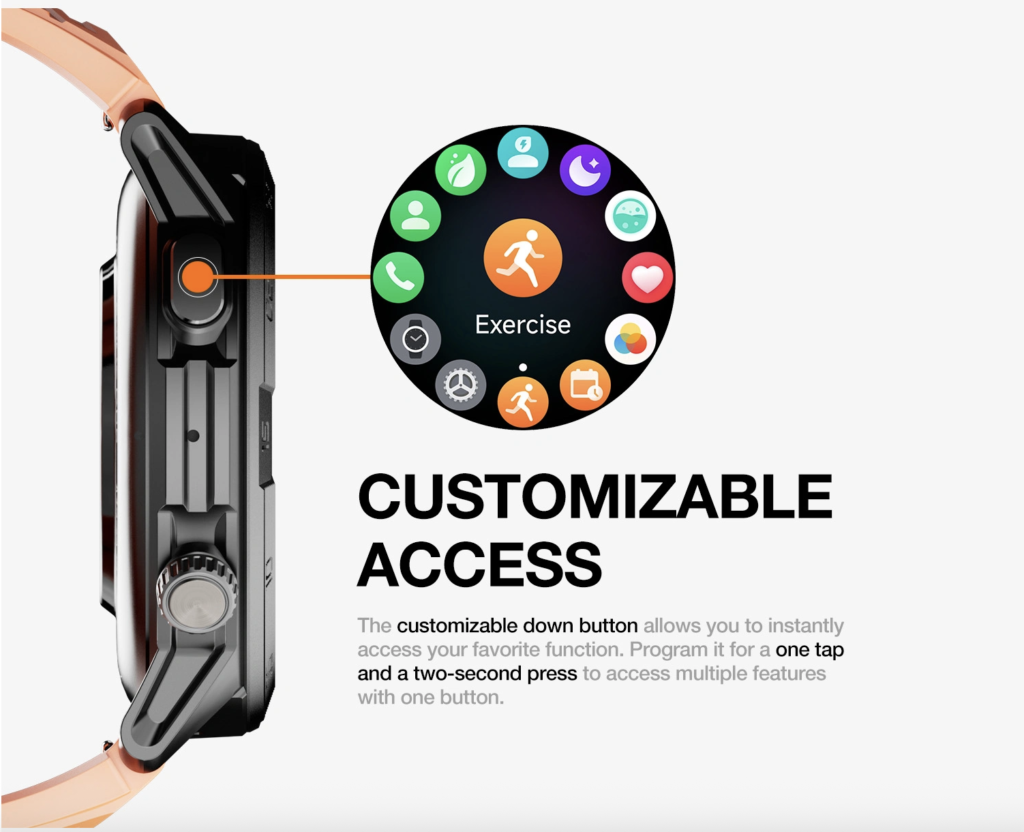
Automated switching may fail because of a changed schedule, missed synchronization, or unsupported settings.
The Boston writer should keep one simple manual action available, such as opening the watch’s quick settings and selecting the correct profile.
Readers refining demanding schedules can organize smartwatch communication around a demanding daily schedule without turning the watch into another full inbox.
Enter Work Deliberately in a Boston Home Office
The first handoff turns the watch from a general personal device into a limited work-support tool.
The writer should not begin the day with every personal and professional channel competing for the same small screen.
Choose a clear work-entry trigger
The work profile may begin when the writer:
- Enters the home office
- Starts the scheduled work window
- Opens the grant calendar
- Begins the first focused writing block
- Manually activates work mode
The trigger should match an action the writer already performs.
A complicated routine is less likely to survive busy deadline weeks.
Define who can reach the writer during work
The allowed work contacts may include:
- Immediate supervisor
- Grant-project lead
- One funder-deadline contact
- A genuinely urgent team channel
- A family-priority contact
The profile should not elevate every email sender or group message to wrist-level urgency.
Choose reminders that change an action
Useful work reminders may include:
- One funder deadline
- A scheduled call
- A calendar transition
- A required status update
- The end of a focused writing block
Routine informational messages can remain on the laptop.
The watch earns its place when an alert changes what the writer does next.
Remove signals that do not belong in the work role
The work profile can suppress:
- Shopping notifications
- Promotional messages
- Social alerts
- Low-priority personal chats
- Duplicate calendar notices
- Personal reminders unrelated to the work window
The goal is not to eliminate personal life. It is to prevent unrelated signals from occupying the work role.
Confirm that the profile started
A visible confirmation reduces uncertainty.
Depending on the supported setup, the writer might use:
- A work-profile icon
- A simplified watch face
- A different complication set
- A short confirmation vibration
- A focus-mode indicator
The screen should immediately show that the watch is now serving the work role.
Limit Work Alerts to Signals That Change an Action
A smartwatch should not become a miniature version of the writer’s laptop inbox.
The wrist has less space and demands more immediate attention. That makes selection more important, not less.
Keep deadline and coordination signals
An alert deserves work-profile access when it changes:
- The next writing block
- A funder deadline
- A scheduled meeting
- A supervisor response
- A handoff to another team member
- A genuinely urgent project action
Delay general information
The writer probably does not need every:
- Shared-document update
- Team-channel comment
- Newsletter
- Routine email
- Nonurgent project message
- Status notification
These can remain on the computer until the writer chooses to review them.
Protect one family-priority route
A work profile should reduce personal noise without making the writer unreachable to family.
One selected contact may need to send:
- A pickup change
- A household schedule update
- A genuinely urgent message
- A time-sensitive family request
The exact bypass behavior must be tested on the paired phone and watch.
Remove duplicate signals
A message that appears on the laptop, phone, and wrist may create three interruptions without adding new information.
The writer should keep the device that best matches the task.
For focused grant work, the laptop may be enough for most team communication. The watch can remain reserved for deadlines and selected contacts.
Readers can reduce repeated phone and wrist checks during a busy workday by removing duplicate delivery rather than silencing every useful channel.
Create a Work-Exit Handoff Before the Massachusetts Evening Begins
The second handoff is the most important.
A remote workday does not end simply because the clock reaches 5:00 p.m. The writer needs a closure action that changes both the work record and the watch’s availability.
Trigger a closing reminder before the end
The reminder should arrive early enough to allow the writer to:
- Save the current grant draft
- Record the next step
- Identify one unresolved item
- Send one necessary update
- Review tomorrow’s first action
- Close the work session
Its purpose is closure, not squeezing in more productivity.
Capture unfinished work once
An incomplete grant section can remain mentally active long after the laptop closes.
The writer should record:
- Where the draft stopped
- What remains unresolved
- The first action for tomorrow
- Whether a deadline genuinely requires evening attention
Once that information is captured, routine reminders should stop resurfacing.
Remove normal workplace availability
At the work-exit handoff, suppress:
- Team-chat notifications
- Routine work email
- Shared-document updates
- Deadline complications
- Unread work badges
- Nonurgent calendar reminders
The writer should not wait until several evening interruptions have already arrived.
Keep one approved urgent route
Some nonprofit roles may require limited after-hours availability.
One route can remain open through:
- A specific supervisor
- A designated number
- One urgent contact group
- An approved escalation channel
A narrow exception should not reopen every work app.
Add a visible closure cue
The watch should show that the role has ended.
Possible cues include:
- A “workday closed” reminder
- A changed watch face
- Removal of work complications
- One confirmation vibration
- The start of a short transition timer, when supported
A clear cue matters because the writer remains in the same home where the work took place.
Replace the Commute a Remote Worker Does Not Have
Office commuters often receive a physical transition between roles. A remote grant writer may move from a deadline to family interaction in less than a minute.
The third profile should create a middle interval rather than forcing an immediate switch.
Use a short Boston decompression walk
The writer leaves the home office and takes a brief neighborhood walk.
This is not a fitness target. The walk marks the end of professional availability and creates distance from the grant deadline.
Keep the transition profile quiet
During the walk, the watch may allow:
- Time
- Family-priority contacts
- Music controls
- A personal calendar
- One transition reminder
- Basic activity information
Routine work signals should remain closed.
Avoid reopening the work role
The decompression screen should not display:
- Team-chat badges
- Grant deadlines
- Shared-document updates
- Routine email previews
- Tomorrow’s task list
- Work-calendar complications
A transition walk loses value when the wrist keeps replaying the workday.
End the transition deliberately
The personal profile may begin when the writer:
- Returns from the walk
- Reaches the scheduled family-time start
- Enters the kitchen or living room
- Manually selects personal mode
Location-based switching should not be assumed unless it has been verified.
Restore Family Availability During Personal Time
Leaving work is not identical to entering personal time.
The writer may have stopped professional activity but still need to bring family contacts and household reminders back into view.
Restore the people who belong in the personal role
The personal profile may permit:
- Family calls
- Household coordination
- Pickup changes
- Personal reminders
- Selected friends
- Evening plans
These contacts should not remain hidden behind the work profile.
Remove work information from the watch face
The visible surface should no longer show:
- Grant deadlines
- Unread work email
- Team-chat counts
- Project complications
- Work-calendar events
- Tomorrow’s writing task
Even silent information can keep the work role mentally present.
Keep only the approved urgent exception
When one after-hours work route is necessary, retain only that route.
Routine work messages should remain unavailable until the next work-entry handoff.
Make the personal surface visibly different
A personal watch face might prioritize:
- Family calendar
- Time
- Music controls
- Personal reminders
- Evening plans
- General activity information
The screen itself should confirm the role change.
Readers can separate after-hours family availability from routine work communication while keeping the three-handoff sequence intact.
Prevent Routine U.S. Work Messages From Returning at Night
A clean work exit can fail when work applications regain access later.
The writer should test the personal profile during a real Boston evening rather than assuming it will hold.
Identify common work re-entry routes
Work may return through:
- Email summaries
- Team-chat mentions
- Calendar reminders
- Shared-document notifications
- Deadline alerts
- Nonurgent coworker messages
Remove silent visual pressure
A notification does not need to vibrate to keep work visible.
The watch may still show:
- Unread counts
- Message previews
- Calendar complications
- Notification dots
- Email summaries
These signals can keep the writer mentally available after the role has ended.
Define what qualifies as urgent
The writer should decide before dinner:
- Which sender may interrupt
- What type of issue deserves evening attention
- Which channel carries the alert
- Whether the response belongs on the watch, phone, or next workday
A vague “urgent work” exception usually becomes too broad.
Keep normal work channels closed
One approved escalation route should not reopen:
- Every email
- Every team channel
- Every grant notification
- Every shared-document alert
- Every calendar reminder
Test one full evening
Any routine work message that returns after family time begins should be treated as a transition failure.
The writer can then adjust the correct profile rather than repeatedly dismissing the same unwanted signal.
Reset the Smartwatch for a Boston Weekend
Weekday triggers should not remain active automatically on Saturday and Sunday.
A weekend reset prevents the watch from re-creating a workday that is not happening.
Review repeating triggers
Check whether work mode begins through:
- A repeating schedule
- A calendar rule
- A location trigger
- A manual habit
- Phone-focus synchronization
Remove expired exceptions
A temporary funder-deadline exception should not remain active after the deadline passes.
Leaving it enabled can create unnecessary weekend availability.
Restore weekend priorities
The weekend profile may emphasize:
- Family calendar
- Personal plans
- Outdoor activities
- Selected contacts
- Music
- Time and weather
Keep occasional weekend work narrow
When a grant deadline genuinely requires attention, create a temporary window.
Do not restore the complete weekday work setup for the entire weekend.
Confirm Monday’s work-entry profile
Before the new week begins, verify:
- Work-entry time
- Priority contacts
- Deadline reminders
- Family exceptions
- Temporary rules that should be removed
Buying Considerations for American Remote Professionals
A watch should be judged by whether it supports the three handoffs reliably, not merely by how many notifications it can display.
Check profile and focus support
Verify whether the watch-and-phone combination supports:
- Scheduled modes
- Manual mode switching
- Contact exceptions
- Phone synchronization
- Calendar filtering
- Watch-face changes
- Weekend schedules
Compare iPhone and Android behavior
The experience may change according to:
- Phone operating system
- App permissions
- Notification access
- Focus synchronization
- Background connection
- Software version
The exact setup matters more than a general compatibility label.
Test family-priority behavior
Do not assume that selected contacts can automatically bypass every work profile.
Call and message behavior should be tested before the writer depends on it.
Evaluate transition speed
A useful role transition should not require:
- Several menus
- Daily notification rebuilding
- Repeated app changes
- Complex phone configuration
- Manual editing of every contact
The system should be simple enough to repeat.
Review U.S. ownership value
American buyers may compare:
- Price in USD
- Companion-app reliability
- Warranty support
- Replacement-charger availability
- Display readability
- Home-office comfort
- Battery availability through work and evening
- Phone compatibility
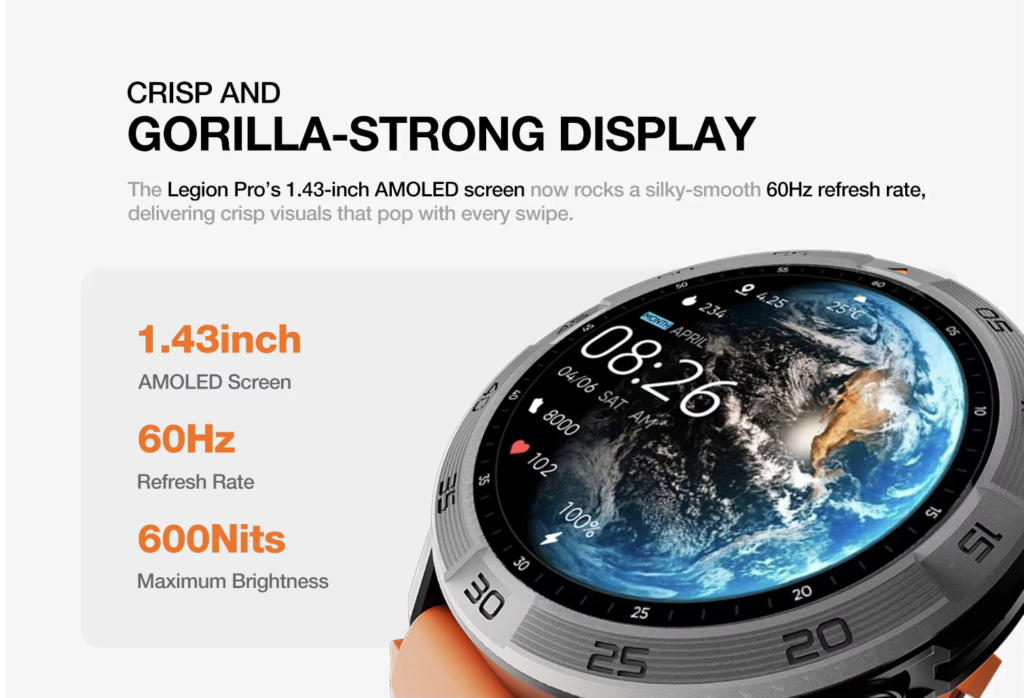
Bluetooth calling may help with brief coordination, but it remains a supporting feature.
Readers can compare everyday smartwatch convenience across work and personal routines before making role-transition support the final purchase criterion.
Smartwatch for Work Life Convenience: Read the Transition Result
The final result should show whether the watch matched each role.
Work-entry result
Supervisor, grant deadline, and family-priority contacts active. Personal noise reduced. Work watch face confirmed.
Work-exit result
Unfinished task captured once. Routine work alerts removed. One urgent escalation route retained. Closure cue completed.
Personal-entry result
Family and personal contacts restored. Work complications removed. Routine work re-entry blocked through the evening.
The system succeeds when:
- Work signals appear during work
- Closure happens before personal time
- Family access returns
- Routine work stays closed
- Weekend triggers do not reactivate unnecessarily
Questions U.S. Remote Workers Ask About Role Transitions
Can smartwatch modes separate work and personal notifications?
Many watch-and-phone combinations support modes or focus profiles, but scheduling, synchronization, and contact exceptions vary. Test the exact setup before relying on it.
Should work email remain visible after business hours?
Routine work email should remain outside the personal profile unless workplace expectations identify a specific after-hours escalation need.
How can a remote worker create an end-of-day cue?
Use one closing reminder, record the next action, remove work information from the watch face, and confirm the profile change with a visible or tactile cue.
Can family contacts bypass a work profile?
Some systems support contact exceptions, but behavior varies by watch, phone, permissions, and focus settings. Verify it directly.
What should change when personal time begins?
Restore family contacts and personal reminders while removing routine work email, team chats, project badges, deadline complications, and unread work counts.
How should profiles change on weekends?
Disable weekday triggers, remove expired exceptions, and keep any necessary weekend work period temporary and narrow.
Make the Watch Match the Current Role
Enter work: approved work and family-priority contacts active.
Leave work: unfinished work captured, routine workplace signals removed, and the work surface closed.
Enter personal time: family availability restored, personal information visible, and only one urgent work route retained.
A smartwatch for work life convenience succeeds when its signals match the wearer’s current role rather than the role that ended an hour earlier.
Build three profiles:
- Work entry: define the people and reminders that belong in the work role
- Work exit: capture unfinished work and remove routine workplace signals
- Personal time: restore family availability while keeping ordinary work messages closed
Test each handoff and note where the wrong alerts, contacts, or work information remain active. Then review the notification and communication feature details to determine whether the smartwatch’s alarms, calendar tools, notifications, Bluetooth calling, and battery capacity support the transition system you need.