
The first test should be simple: have someone call your phone while the watch is on your wrist.
If the watch only vibrates and shows the caller, you may have call alerts but not full wrist calling. If you can tap answer, hear the caller through the watch, and speak back through the watch microphone, then the smartwatch call answer feature is working correctly.
This guide walks through the setup without inventing exact app menus. Companion apps and phone settings can vary, but the core process is usually the same: pair the watch, grant permissions, enable call audio, sync contacts, test incoming calls, test outgoing calls, and fix connection issues before relying on it during work or daily use.
Pair the Watch
Start with pairing because every calling feature depends on the phone and watch recognizing each other.
Charge the watch first. A low battery can interrupt pairing or make the setup feel broken when the real problem is power. Keep the watch close to the phone and turn on Bluetooth.
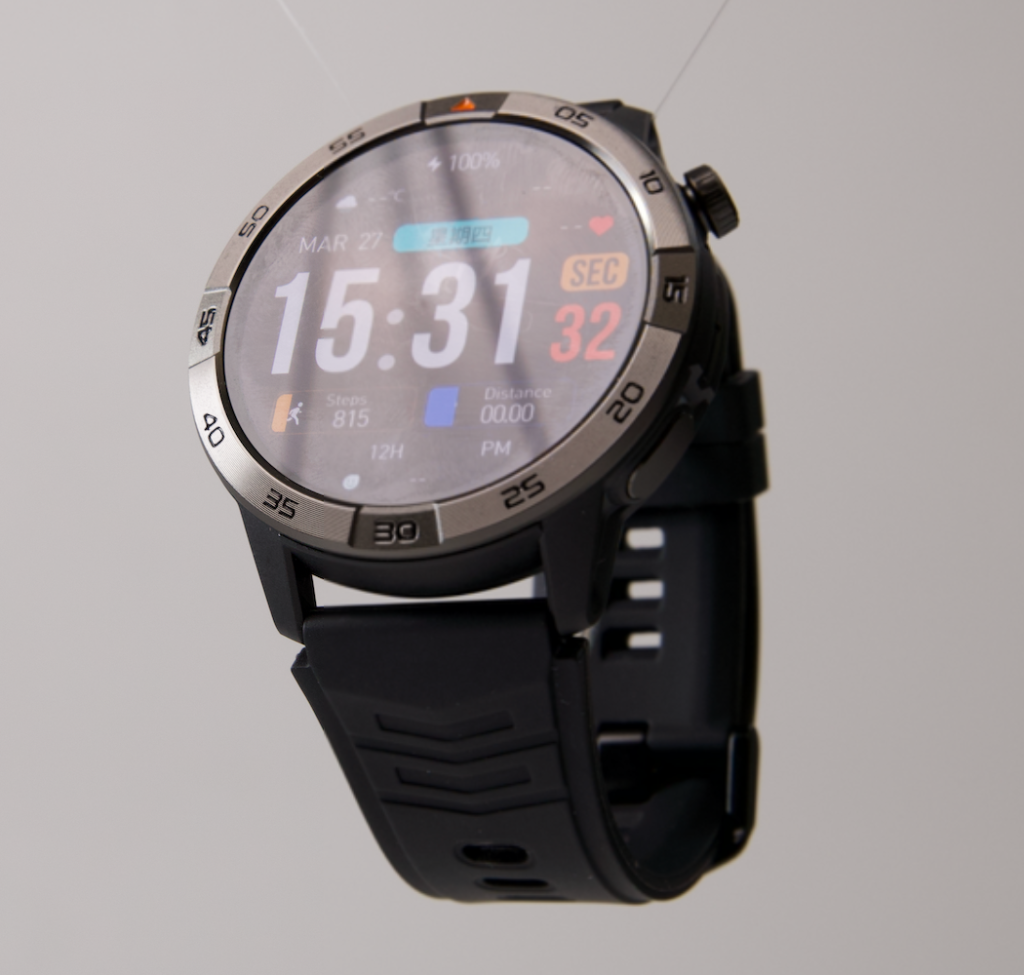
Then open the watch’s companion app if the product requires one. Many smartwatches pair through the app first, then create a second Bluetooth connection for call audio. That second connection is important because notification pairing and call-audio pairing are not always the same thing.
A clean pairing process usually looks like this:
- Turn on Bluetooth on the phone
- Turn on the watch
- Open the companion app
- Add or bind the watch
- Accept the pairing request
- Keep the phone and watch close together
- Wait until the app shows the watch as connected
Do not rush the process. Some watches take a few minutes to finish syncing.
If the watch appears twice in Bluetooth settings, that may be normal. One connection may handle app data and notifications, while the other handles call audio. Follow the product manual or app instructions instead of deleting one connection too quickly.
The key goal is simple: the watch should show as connected before you try to answer calls.
Grant Call Permissions
Pairing alone may not be enough. The phone may still need permission to share call information, contacts, notifications, or Bluetooth access with the watch app.
This is the step many buyers miss.
When the phone asks for permission, read the prompt carefully. A Bluetooth calling smartwatch may request access to:
- Bluetooth
- Notifications
- Contacts
- Phone calls
- Call logs
- Nearby devices
- Microphone or audio functions
- Background app activity
Not every phone shows the same wording. iPhone and Android permission screens can differ, and different companion apps may use different labels.
The important point is that call answering needs more than step tracking permission. If you deny phone, contact, or notification access, the watch may pair successfully but still fail to show caller names or outgoing call options.
A safe setup rule is this:
Allow only the permissions that support the features you plan to use, but do not deny call-related permissions if you expect the watch to answer calls.
If you are uncomfortable granting a permission, check the app’s privacy policy and product documentation before continuing.
Enable Bluetooth Call Audio
This is the most important setup step for actual wrist calls.
A watch can be connected for notifications but not connected for call audio. In that situation, the watch may show incoming calls, but the conversation may still go through the phone.
Look for a call-audio setting in one of these places:
- The watch companion app
- The phone’s Bluetooth settings
- The watch’s call or phone menu
- The device detail screen inside Bluetooth settings
- The quick settings panel on the watch
The exact label may vary. It may say Bluetooth calling, call audio, phone audio, voice call, dial call, or media/call connection.
After enabling it, run a test call. Ask someone to call your phone, answer from the watch, and confirm three things:
- You can hear the caller through the watch speaker
- The caller can hear you through the watch microphone
- The phone stays nearby and connected
If the call still routes to the phone speaker, check whether the call screen lets you change audio output. Some phones let you choose between phone, speaker, earbuds, car audio, and watch audio.
For a deeper explanation of why speaker and microphone hardware matter, read this guide to a smartwatch with speaker and microphone for calls.
Sync Contacts
Contact syncing makes the call answer feature easier to use.
Without contacts, the watch may show only a phone number. With contacts synced, it may show the caller’s name, recent calls, favorites, or a contact list for outgoing calls.
Start with basic caller ID. Ask someone saved in your phone contacts to call you. If the watch shows the name, contact sync is working at least for incoming calls.
Then test outgoing calling if the watch supports it. Open the watch’s phone or call function and check whether you can access:
- Recent calls
- Favorite contacts
- Dial pad
- Contact list
- Emergency contact, if supported
Do not assume every Bluetooth calling watch handles contacts the same way. Some allow full contact sync. Others only show recent call history or selected contacts from the companion app.
If contacts do not appear, check whether the phone asked for contact permission during setup. Also check whether the companion app has a contact-sync option.
This step matters because outgoing wrist calls are much easier when you are not typing a full number on a small screen.
Answer a Call
After setup, test the feature in the simplest possible environment: a quiet room with the phone nearby.
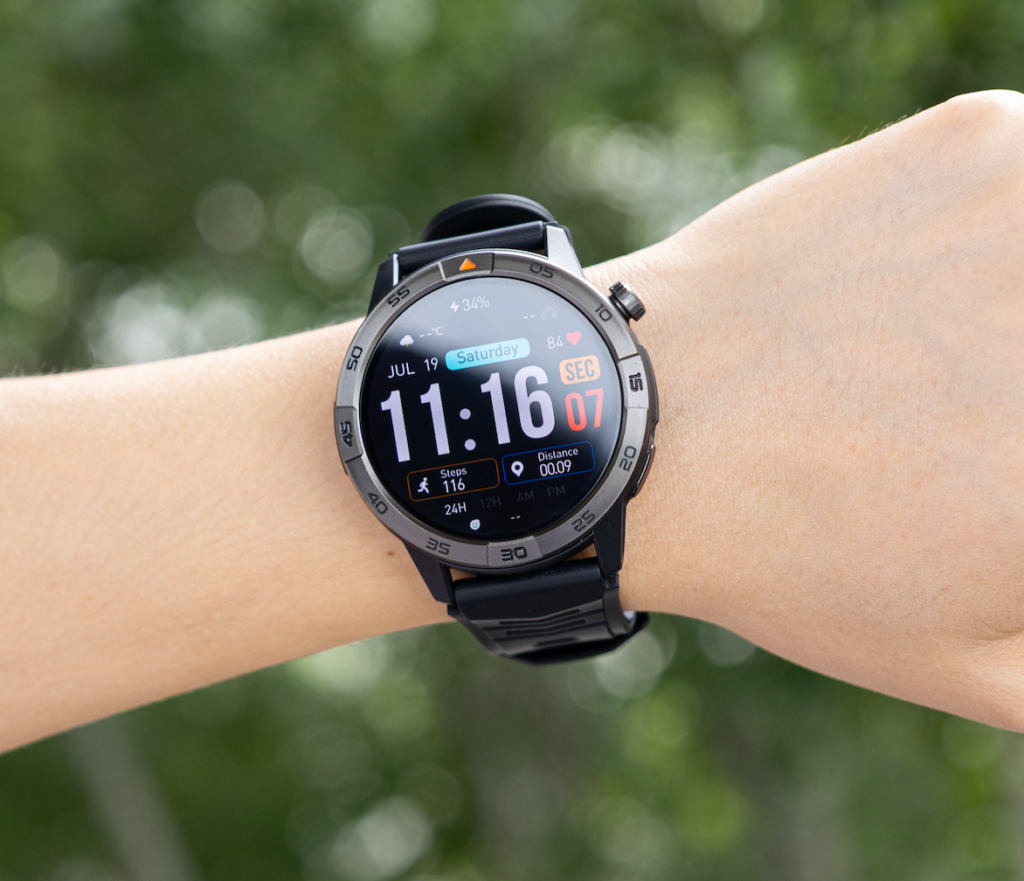
Ask someone to call your phone. When the watch rings or vibrates, look for the answer button on the watch screen. It is usually shown as a green phone icon, but icon style may vary.
Tap answer once. Do not repeatedly tap the screen unless nothing happens after a few seconds.
Then speak normally. Keep the watch near your mouth, but do not press it against your face. If the caller says your voice sounds low, raise your wrist slightly.
A good first test should confirm:
- Caller information appears on the watch
- Answer button responds
- Audio plays through the watch
- Microphone sends your voice clearly enough
- The call remains connected
- End-call button works
If the caller cannot hear you, check microphone permission, call-audio routing, and whether the watch microphone area is blocked by a sleeve.
If you cannot hear the caller, check volume and whether audio is still routed to the phone.
For real-world performance checks, use the call-testing method in this guide to smartwatch call-quality testing.
Reject a Call
Rejecting calls is just as useful as answering them.
During work, commuting, workouts, or errands, you may not want to answer every call. A smartwatch lets you see whether the call matters before pulling out the phone.
When a call arrives, tap the decline button if the call is not urgent. This is usually shown as a red phone icon.
Some watches may also offer quick actions such as silent mode, mute, or message reply. Do not assume those options are available unless they appear on your watch.
Rejecting calls from the wrist is useful when:
- You are in a meeting
- You are carrying something
- You are exercising
- You are working at a desk
- You are cooking
- You are on a break
- You do not recognize the caller
The goal is not to answer more calls. The goal is to handle calls more intentionally.
Make an Outgoing Call
Outgoing calls require more setup than incoming calls.
To make a call from the watch, open the call or phone function on the watch. Depending on the model and app permissions, you may see a dial pad, recent calls, favorites, or synced contacts.
Start with a simple test. Call a trusted contact while the phone is nearby.
Check these details:
- Does the call start from the watch?
- Does the phone remain connected?
- Does audio come through the watch speaker?
- Can the other person hear you?
- Can you end the call from the watch?
If the watch has a dial pad, try calling a short number you know. If it has favorites, add one or two frequent contacts in the app if supported.
Outgoing calls are useful for quick moments, but they are not always the easiest way to start a long conversation. Searching a large contact list on a small watch display can be slower than using the phone.
Use the watch for quick calls. Use the phone when you need speed, privacy, or detailed contact searching.
Adjust Volume
Volume can make or break the call-answer experience.
A watch speaker may sound fine in a quiet room but weaker outdoors, in a warehouse, at the gym, or near traffic. Before judging the watch, check whether call volume is set properly.
During a test call, look for volume controls on:
- The watch screen
- The side button or crown
- The phone call screen
- The phone’s volume buttons
- The companion app, if it includes audio settings
Start at a moderate level. Increase slowly. Maximum volume may make small speakers sound harsher, so the loudest setting is not always the clearest.
Also remember privacy. A wrist speaker can be heard by people nearby. For private calls, move to the phone or use earbuds.
The best use of smartwatch calling is short and practical. Think quick confirmations, caller screening, and brief conversations rather than long speakerphone calls.
Fix Failed Connections
If the call answer feature fails, do not assume the watch is defective immediately. Most problems come from pairing, permissions, audio routing, or distance from the phone.
Use this troubleshooting order.
1. Confirm the Phone Is Nearby
Bluetooth calling needs the paired phone nearby. If the phone is far away, in another room, in a locker, or disconnected, wrist calling may fail.
2. Check Bluetooth Status
Make sure Bluetooth is turned on. If the watch is listed but disconnected, reconnect it.
3. Restart Both Devices
Restart the watch and phone. This fixes many temporary connection issues.
4. Check Call Audio Routing
During a call, confirm audio is routed to the watch, not the phone speaker, earbuds, car system, or another Bluetooth device.
5. Reopen the Companion App
Some watches depend on the companion app running in the background. Open the app and confirm the watch is connected.
6. Review Permissions
Check Bluetooth, phone, contact, notification, and nearby-device permissions. If a permission was denied during setup, the call feature may not work correctly.
7. Unpair and Pair Again
If nothing works, remove the watch from Bluetooth settings and the companion app, then pair it again from the beginning.
8. Test With Another Call
After reconnecting, test both incoming and outgoing calls before relying on the watch during work or travel.
If the problem happens only in one location, the issue may be distance, interference, or another Bluetooth device taking over call audio.
For people using wrist calls during work, this guide to a Bluetooth calling smartwatch for work explains when call access helps and when safety should come first.
Where the 30-Day Calling Smartwatch Fits
A smartwatch call answer feature is only valuable if the watch remains useful after setup.
The 30-day smartwatch with GPS and Bluetooth calling is built around that everyday convenience. It combines Bluetooth calling with a 1.43-inch AMOLED display, built-in GPS, offline maps, notifications, activity tracking, sleep tracking, iOS and Android compatibility, and up to 30 days of advertised battery life.
At $150, it appeals to buyers who want call answering without moving into expensive cellular smartwatch territory.
The key advantage is that it supports wrist-call convenience while still functioning as a daily smartwatch. You can answer quick calls, reject non-urgent calls, check alerts, track activity, and use basic navigation tools without treating the watch as only a call screen.
The limitation is clear: Bluetooth calling is not independent cellular calling. Your phone must stay nearby.
That trade-off is acceptable for many people because their phone is usually in a pocket, bag, desk, vehicle, or nearby room anyway.
Final Setup Checklist
Before depending on the watch for calls, run this checklist.
- Watch paired to phone
- Companion app connected
- Bluetooth call audio enabled
- Call permissions granted
- Contacts synced or favorites added
- Incoming call tested
- Outgoing call tested
- Watch speaker volume adjusted
- Caller confirms microphone works
- Phone kept nearby
- Reconnection tested after walking away
If every item works, the smartwatch call answer feature is ready for normal use.
Conclusion
A smartwatch call answer feature should not feel intimidating. Most setup problems come from the same few places: incomplete pairing, missing permissions, disabled call audio, unsynced contacts, or the phone being too far away.
Once those pieces are handled, Bluetooth calling becomes simple. Your phone still manages the actual call, but the watch lets you answer, reject, and make short calls from your wrist when the phone is nearby.
That is the right expectation. Not phone-free LTE calling. Not guaranteed completely touch-free calling. Just convenient wrist calling for everyday moments.
Explore the 30-day smartwatch with GPS and Bluetooth calling if you want a long-battery smartwatch that supports call answering, GPS, offline maps, AMOLED display quality, and daily convenience at a practical price point.